
THE PREPARATION NOTEBOOK / Presentations
NCERT PPT for Teachers: Turn a Chapter Into an Editable Presentation
Create a teaching presentation from selected NCERT pages in Teachers Lab. Plan the lesson, refine the slides and download an editable PPTX, with an actual Integration deck to explore.
Teachers Lab material · Free sample download
Written with AI assistance for Teachers Lab. Review and adapt the classroom examples for your pupils.
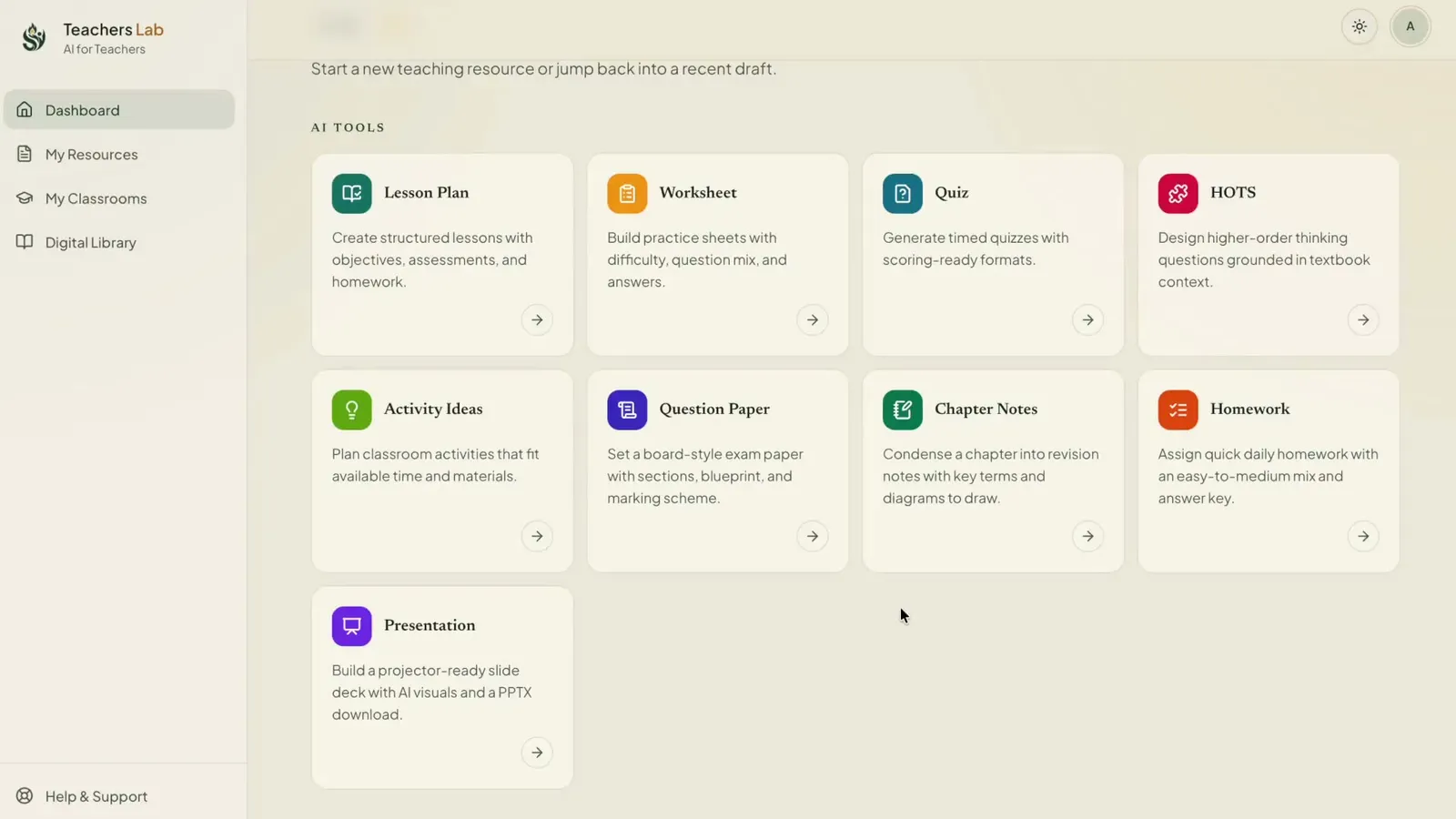
Plan the lesson before counting slides
A chapter and a presentation have different jobs. A chapter can contain extended explanations and several lessons’ worth of ideas. A teaching deck should help the class follow one clear sequence: the question being explored, the explanation, a worked example, pupil practice and a check for understanding.
Start by writing what pupils should be able to do after the lesson. For an introductory integration lesson, that might be to recognise an antiderivative, check it by differentiation and explain why a constant of integration is needed. Reserve later properties and harder applications for another lesson if they are outside this period’s scope.
Explore an actual Teachers Lab deck
Download the Class 12 Integration presentation from the resource panel. It is an existing Teachers Lab sample, available as an editable PPTX. Its purpose here is to let you inspect slide content and layout before creating your own chapter-based version.
The planning example below is a suggested teaching sequence; it is not a slide-by-slide transcript of the downloadable sample.
| Slide | Purpose | What pupils do |
|---|---|---|
| 1. Opening question | Show that differentiating x squared gives 2x; ask about reversing the process | Predict an expression whose derivative is 2x |
| 2. Learning goal | State the skill being practised in this lesson | Explain the goal in their own words |
| 3. Key idea | Introduce the antiderivative and the constant of integration | Compare x squared, x squared + 3 and x squared - 5 |
| 4. Worked example | Model a simple integral and check by differentiation | Follow the reasoning and identify the checking step |
| 5. Your turn | Give one supported problem | Work individually, then compare a method with a partner |
| 6. Common mistake | Show an answer missing the constant | Explain what information the answer leaves out |
| 7. Apply the idea | Use a second example at the same taught level | Justify the answer and check it |
| 8. Exit check | Ask for an answer and a short explanation | Submit evidence of individual understanding |
Choose the exact NCERT pages
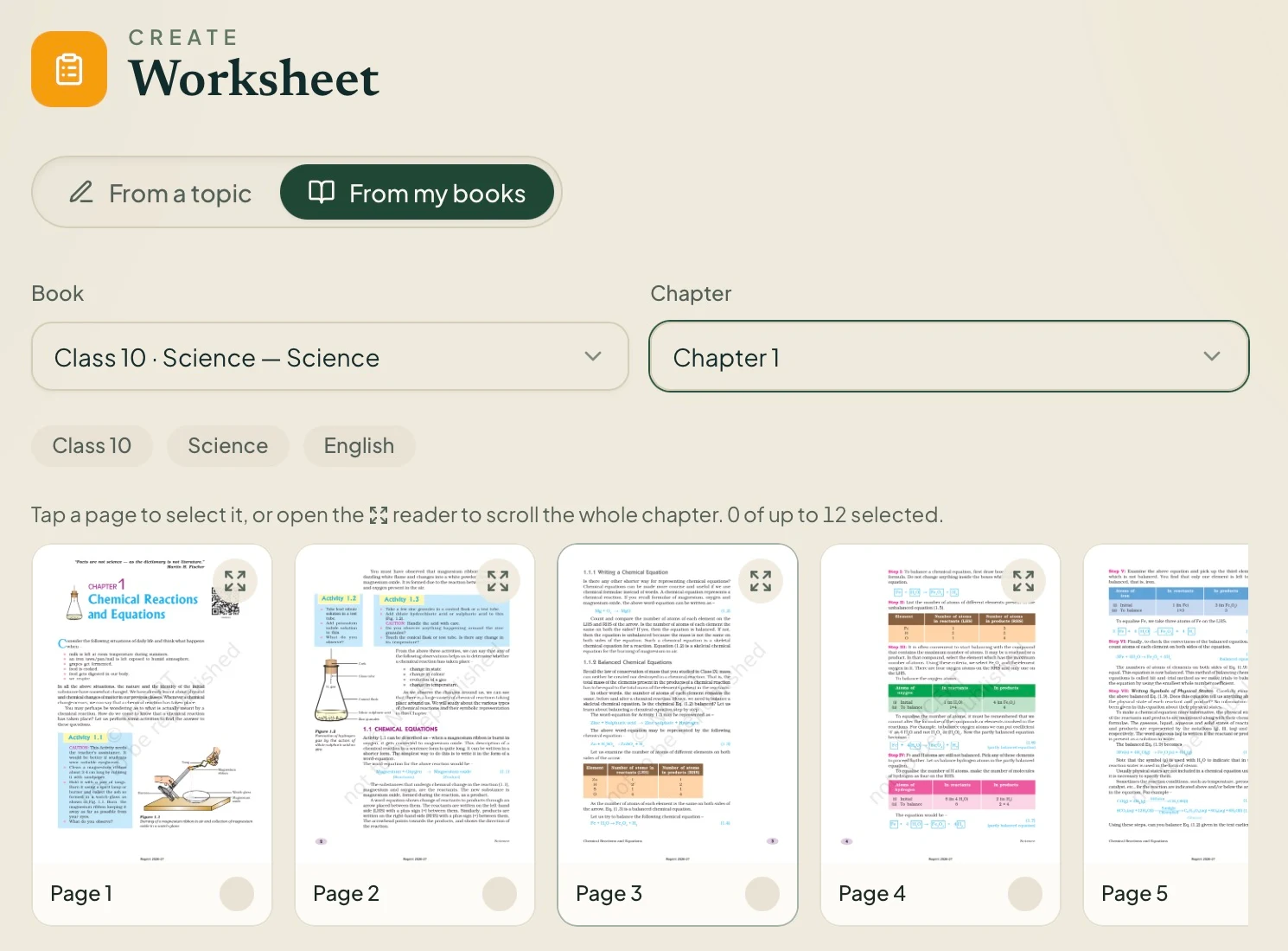
In Teachers Lab, open Presentation and select From my books. Choose the saved NCERT book and chapter, then select the pages containing this lesson’s ideas. Use the reader to check the page range before generating.
Keep the source narrow enough for the lesson. Selecting an entire long chapter and asking for a very short deck can lead to too much material competing for attention. For a topic-based presentation, set the class, subject, board and language and state the intended scope explicitly.
The screenshots below show the book and page controls used across the creation workflow. They are existing product captures of that source-selection step, not a recording of a newly generated deck.
Set slide count and describe the teaching approach
Choose the slide count and the available presentation options. Tell the app what the class will do with the deck: a teacher-led explanation, guided practice or a recap. Mention whether examples should appear before a pupil task and whether the final slide needs an exit question.
Create an eight-slide Class 12 Mathematics presentation introducing antiderivatives from the selected NCERT pages. Include a reverse-differentiation hook, a clear explanation of the constant of integration, two worked examples, one pupil task, a common error and an exit check. Keep text short enough to read from the back of a classroom. Use equations rather than decorative images where they explain the idea better.
For the first deck, keep the objective specific. A visually attractive slide should still contribute to the learning sequence.
Review the slides in the workspace
Read each slide in order. Check that equations, labels and diagrams are correct, that a solution does not appear before pupils are meant to attempt the question, and that text can be read at classroom viewing distance.
Use the slide editor to adjust wording and layout. Where needed, use the available slide text or regeneration controls, or choose a restyle. A shorter explanation plus a pupil task is often more useful than several dense paragraphs on one slide.
Export and check the file you will teach from
Download the presentation as PPTX for further editing or PDF for a fixed version. Open the exported file on the classroom device. Check maths, fonts, image placement, contrast and the order of the slides. The in-app preview and the final display should both be part of preparation.
Keep the deck with the class’s other teaching resources so that the next lesson starts from what was actually covered. For a companion assessment, see competency-based Science questions; for the lesson structure, see the 5E planning guide.
Common questions
Can I start from a topic instead of textbook pages?
Yes. Choose From a topic and provide the board, class, subject, language and teaching brief. Choose saved book pages when you want that material as the source.
Can I edit the presentation after downloading it?
Yes. The PPTX export is editable in compatible presentation software. Open and check the downloaded file before class.
Is the sample deck free to download?
Yes. The existing Integration sample is available without signing in. Creating a new presentation in Teachers Lab is subject to the account’s plan and usage allowances.
YOUR NEXT CLASS
Create a version for your classroom.
Bring your topic or book pages, then review and refine the resource for your students.
Start in Teachers Lab